
What Is robots.txt and How to Configure It Yourself
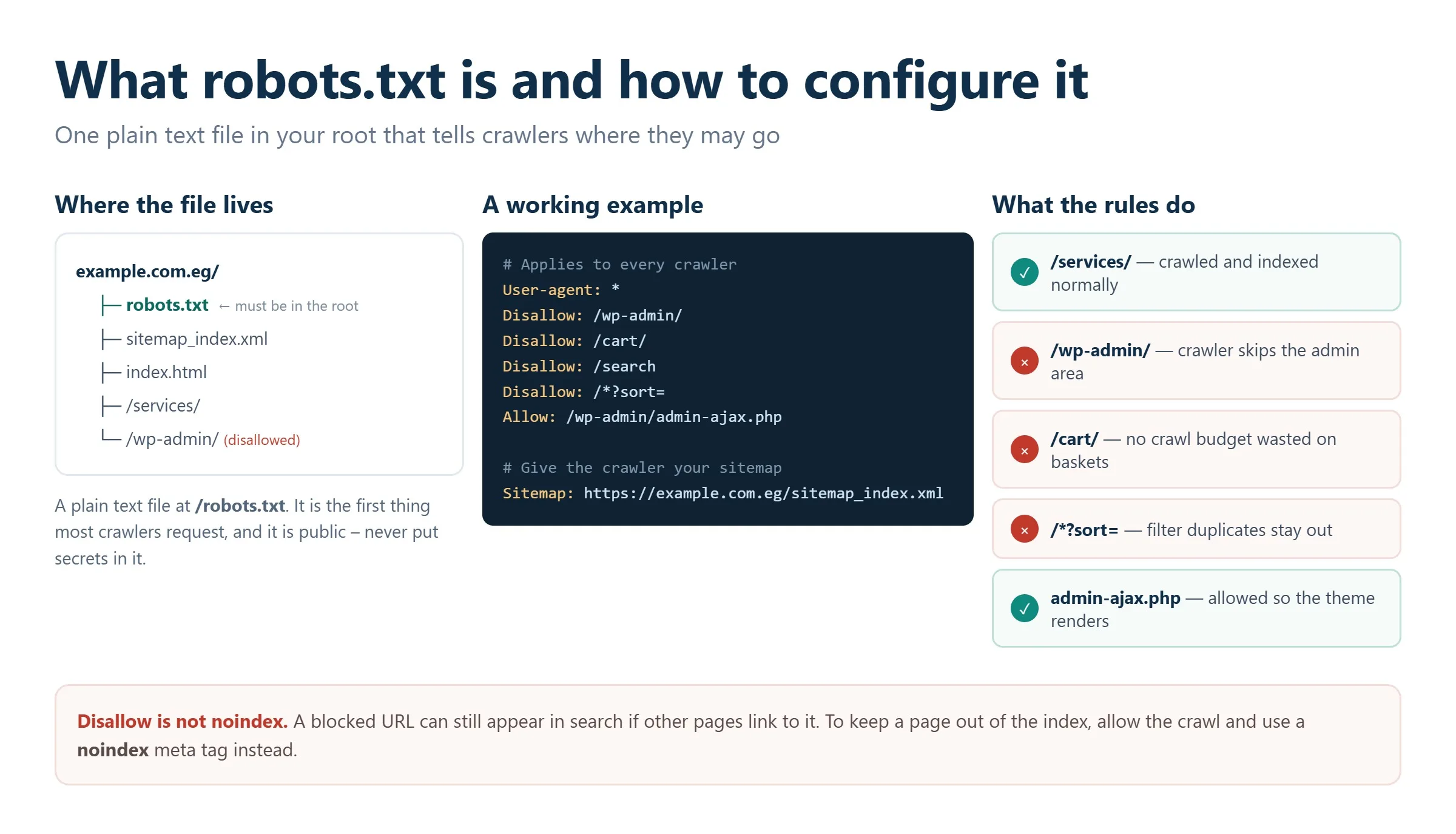
robots.txt is a plain-text file placed in the root of your domain (for example, https://example.com/robots.txt) that tells search engine crawlers such as Googlebot which URLs they may or may not request. You configure it yourself by creating a UTF-8 text file, adding a few directives (User-agent, Disallow, Allow, and Sitemap), uploading it to the root folder, and validating it in Google Search Console. It controls crawling, not indexing, so it is one piece of technical SEO, not the whole toolkit.
Key takeaways
- robots.txt is a public file in your domain root that gives crawling instructions to search engine bots, it must be reachable at
/robots.txtand encoded in UTF-8. - The four directives you will use most are
User-agent,Disallow,Allow, andSitemap. Wildcards*and$let you match URL patterns. - robots.txt controls crawling, not indexing. A blocked page can still appear in Google’s results if other sites link to it. Use a
noindexmeta tag or HTTP header to keep a page out of the index. - Never block CSS and JavaScript that Google needs to render your pages, and never ship an accidental
Disallow: /it can wipe out your organic traffic. - Always test changes with the robots.txt report and URL Inspection tool in Google Search Console before and after you publish.
What robots.txt is and why it matters
robots.txt is a small text file that acts as a set of ground rules between your website and automated crawlers. The standard was first introduced in 1994 as the Robots Exclusion Protocol and was formally standardized in 2022 as RFC 9309, which Google helped author. Despite being only a few kilobytes, it is one of the first things a well-behaved crawler requests when it visits your site.
When configured correctly, robots.txt does three useful jobs:
- Manages crawl budget. It signals which low-value URLs, faceted filters, internal search results, session parameters, crawlers should skip, so Googlebot spends its limited time on pages that matter.
- Keeps clutter out of the crawl path. It steers bots away from admin panels, staging areas, and system folders.
- Points crawlers to your sitemap. The
Sitemapdirective helps search engines discover your important URLs faster.
The stakes are real. A single stray rule can hide an entire site from search. In one widely cited incident, a large publisher accidentally disallowed all of its articles and watched organic traffic collapse almost overnight. A correctly written file is quietly foundational to every other part of your SEO strategy.
How crawlers read the file, and its limits
robots.txt lives at the root of the domain and must be served as a text file, ideally under 500 KiB, which is where Google stops reading. You can confirm it works by typing the URL into a browser, if you see the contents, the file is reachable.
Just as important is understanding what robots.txt cannot do:
- It does not guarantee a page stays out of Google. Disallowed URLs can still be indexed if they are linked from elsewhere; Google may show them without a description.
- It does not protect private content. The file is public and readable by anyone, including competitors. Use authentication for anything truly sensitive.
- It does not influence rankings directly. Allowing a page to be crawled is not the same as making it rank.
Syntax and the core directives
robots.txt follows strict, line-by-line rules. One misplaced character can cause a crawler to ignore an instruction, so precision matters. Here are the directives you will actually use.
User-agent: which crawler the rules apply to
This directive names the bot a block of rules is written for. Use * to address all crawlers, or a specific token to target one.
User-agent: *          # applies to all crawlers
User-agent: Googlebot  # Google's main crawler only
User-agent: Bingbot    # Microsoft Bing's crawler only
If you omit User-agent, the block is invalid and will be ignored. You can write separate blocks for different bots.
Disallow: block crawling of a path
This tells the named crawler not to request URLs that begin with the given path. The leading slash is required.
Disallow: /admin/     # block the admin area
Disallow: /tmp/       # block temporary files
Disallow: /*?sort=    # block sort-parameter URLs
An empty value, Disallow: with nothing after it, means “allow everything.”
Allow: carve out an exception
The Allow directive re-opens a specific path inside a broader Disallow. It is handy when you want to block a section but keep one URL crawlable.
User-agent: *
Disallow: /blog/            # block the whole blog folder
Allow: /blog/seo-tips/      # but allow this one page
Google resolves conflicts by the most specific (longest) matching rule, so a targeted Allow can override a broader Disallow.
Sitemap: point to your XML sitemap
List one or more full, absolute sitemap URLs. This directive is independent of User-agent and helps crawlers find your content.
Sitemap: https://example.com/sitemap.xml
Sitemap: https://example.com/sitemap-images.xml
Wildcards and comments
Two special characters give you pattern matching: * stands for any sequence of characters, and $ anchors the end of a URL. The hash symbol # starts a comment.
# block every PDF file
Disallow: /*.pdf$

# block all internal search result pages
Disallow: /search?*
Ready-made examples for WordPress and other CMS platforms
The right configuration depends on your platform. Below are practical starting templates. Adapt the paths to your real structure, and always test before relying on them.
WordPress
A typical WordPress site benefits from blocking admin and system endpoints while keeping media crawlable. If you run WordPress, our WordPress development team can wire this up alongside your SEO plugin.
User-agent: *
Disallow: /wp-admin/
Allow: /wp-admin/admin-ajax.php
Disallow: /wp-includes/
Disallow: /wp-content/plugins/
Disallow: /?s=                 # internal search results
Disallow: /comments/feed/
Allow: /wp-content/uploads/    # keep images and files crawlable

Sitemap: https://example.com/wp-sitemap.xml
Note that /wp-admin/admin-ajax.php is explicitly allowed because themes and plugins rely on it, and /wp-content/uploads/ is kept open so images can be crawled. If you use Yoast or another SEO plugin, it generates a sitemap index (often sitemap_index.xml), reference that instead.
E-commerce store (Shopify, WooCommerce, and similar)
Online stores generate huge numbers of near-duplicate URLs through cart actions, accounts, and filters. Trim those from the crawl path.
User-agent: *
Disallow: /cart
Disallow: /checkout
Disallow: /account
Disallow: /*?sort=
Disallow: /*?filter=
Allow: /products/

Sitemap: https://shop.example.com/sitemap.xml
Multilingual site
Keep language-specific admin areas closed and confirm each language has its own sitemap.
User-agent: *
Disallow: /en/admin/
Disallow: /de/admin/

Sitemap: https://example.com/sitemap-en.xml
Sitemap: https://example.com/sitemap-de.xml
Large marketplaces and SaaS platforms often generate robots.txt dynamically so that rules stay in sync with a changing URL structure: a task worth handing to your technical support team.
Common mistakes and how to fix them
Even experienced developers slip up in robots.txt, and the cost can be steep. Watch for these.
- An accidental full block.
Disallow: /underUser-agent: *tells every crawler to skip your entire site. This is the classic cause of a sudden traffic collapse after a launch or migration. - Blocking CSS and JavaScript. If Googlebot cannot fetch the assets it needs to render a page, it may misjudge the layout and mobile-friendliness. Keep rendering resources crawlable.
- Missing the leading slash.
Disallow: adminis not a valid path; writeDisallow: /admin/. - Relying on robots.txt to remove a page from Google. Because a blocked page can still be indexed via inbound links, use
noindexinstead (see below). - Case and whitespace errors. The filename must be lowercase
robots.txt, and stray spaces after a colon can break parsing for stricter crawlers.
Whenever you inherit or overhaul a site, a full SEO audit should include a review of the robots.txt file so these issues are caught before they cost you rankings.
How robots.txt differs from noindex and the meta robots tag
This is the single most misunderstood point in technical SEO, so it is worth being precise.
- robots.txt controls crawling. It decides whether a bot is allowed to request a URL. It works at the site or directory level.
- The
noindexmeta robots tag (orX-Robots-TagHTTP header) controls indexing. It tells Google not to keep a page in its index. It works at the individual page level.
The critical interaction: if you block a page in robots.txt, Google never crawls it, which means Google never sees the noindex tag on that page. So a page that is both disallowed and marked noindex can paradoxically stay in the index. To reliably remove a URL, allow crawling and add noindex, or use the URL removal tool in Search Console. A simple page-level tag looks like this:
<meta name="robots" content="noindex, follow">For non-HTML files such as PDFs, use the header equivalent:
X-Robots-Tag: noindexIn short: use robots.txt to save crawl budget on low-value URLs, and use noindex to keep specific pages out of search results. They solve different problems and often work together.
How to test robots.txt in Google Search Console
Never publish a robots.txt change blind. Google Search Console gives you the tools to see the file the way Googlebot does.
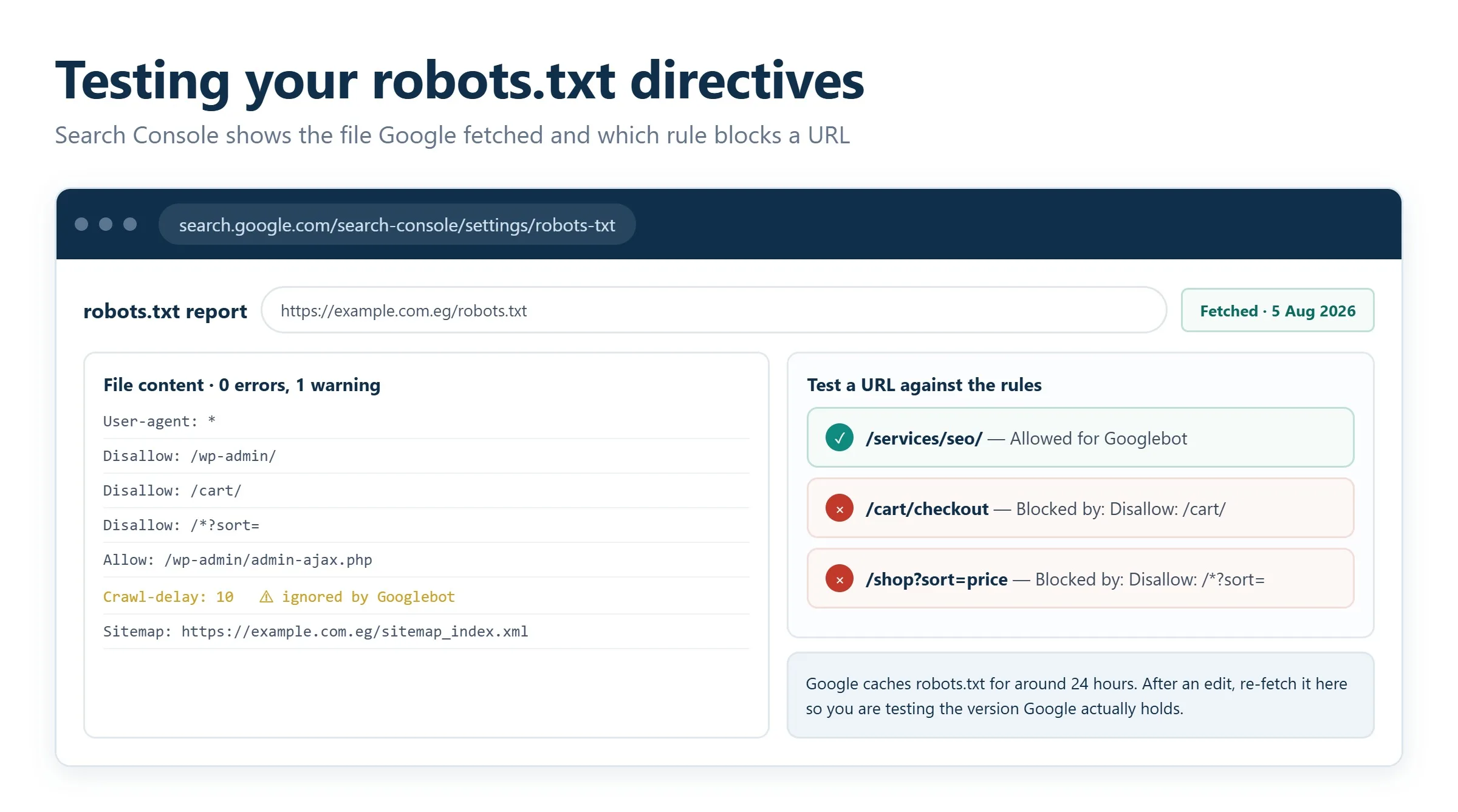
- Open the robots.txt report. In Search Console, go to Settings → robots.txt. Google shows the version it last fetched, when it was fetched, and flags any parsing errors or warnings.
- Request a re-fetch after changes. If you have just uploaded a new file, use the report’s option to ask Google to fetch the latest version so it stops serving a cached copy.
- Test specific URLs with URL Inspection. Paste a URL into the inspection bar at the top of Search Console. It tells you whether the page is allowed or blocked by robots.txt, and whether it is indexed.
- Recheck after edits. Confirm that pages you want indexed are crawlable and that the URLs you intended to block are actually blocked, and nothing else was caught by accident.
Make this a habit: run the check after every redesign, CMS migration, or structural change, and audit the file at least once a quarter. As search shifts toward AI-driven answer engines, the same discipline of clean, crawlable technical foundations underpins generative engine optimization (AI SEO) too.
Frequently asked questions
Do I need a robots.txt file at all?
Not strictly. If you have no robots.txt file, crawlers assume they can access everything, which is fine for many small sites. However, having one lets you manage crawl budget, point to your sitemap, and keep bots out of system folders, so most sites benefit from a deliberate, minimal file rather than none.
Will Disallow remove a page from Google search results?
No. Disallow stops Google from crawling a page, but the URL can still appear in results if other pages link to it. To reliably remove a page, allow crawling and add a noindex meta tag or X-Robots-Tag header, or use the removal tool in Google Search Console.
Where exactly does the robots.txt file go?
It must sit in the root of your domain and be reachable at https://yourdomain.com/robots.txt. A file placed in a subfolder will not be recognized. Each subdomain needs its own robots.txt, and the filename must be all lowercase.
Can I set different rules for Googlebot and other crawlers?
Yes. Write a separate User-agent block for each crawler you want to treat differently, for example, one block for Googlebot and another for Bingbot. A crawler follows the most specific block that names it, and falls back to the User-agent: * block only if no block names it directly.
How often should I review my robots.txt?
Audit it at least once a quarter, and always after a redesign, a platform migration, or any change to your URL structure. Check the robots.txt report in Search Console and your server logs to confirm crawlers are spending time on the right pages.
Related guides
Want more people
to find your website?
Strategy call and
full site audit

Read also

Article Your Name in ChatGPT: AI Reputation for Individuals and Executives
Article How Much Does SEO Cost in Egypt, Saudi Arabia and the UAE in 2026?
Article Which Sites Do AI Engines Cite? What a 288-Answer Study Means for Gulf Brands
Article Google Algorithm Updates: Every Confirmed Update Since January 2025
Article ChatGPT Ads Context Hints: How to Write Them for Gulf and Arabic Campaigns
Article Google Ads Credit for New Advertisers: What a Google Premier Partner Can Apply for You
Article 25 Questions to Ask an SEO or GEO Agency Before You Hire One
Article GEO for E-commerce: How to Get Your Products Recommended by ChatGPT and Google AI






Real Results
More Wins
SEO & GEO for Delta Medical Labs
 GEO
GEO
1M+ monthly organic visits, 159,200 ranked keywords, 5,570 pages cited by AI engines, and 1,186 #1 rankings in KSA.

Arabic SEO, GEO & guest posting for VPNly
 SEO
SEO
65K peak monthly organic visits, 55 guest posts, and 149 pages cited by AI engines.

SEO & GEO for Ogaei Virtual Care
GEO
From 3 to 7,931 monthly organic clicks in 7 months, 2.9M+ impressions, and 40+ keywords in Google’s Top 10.

SEO for Eduverse
SEO
12× search traffic in 10 months, 45% of target keywords in the top 5, and 55% in the top 10.
Trusted by