

How to Edit Website Code: A Guide for Beginners and Professionals
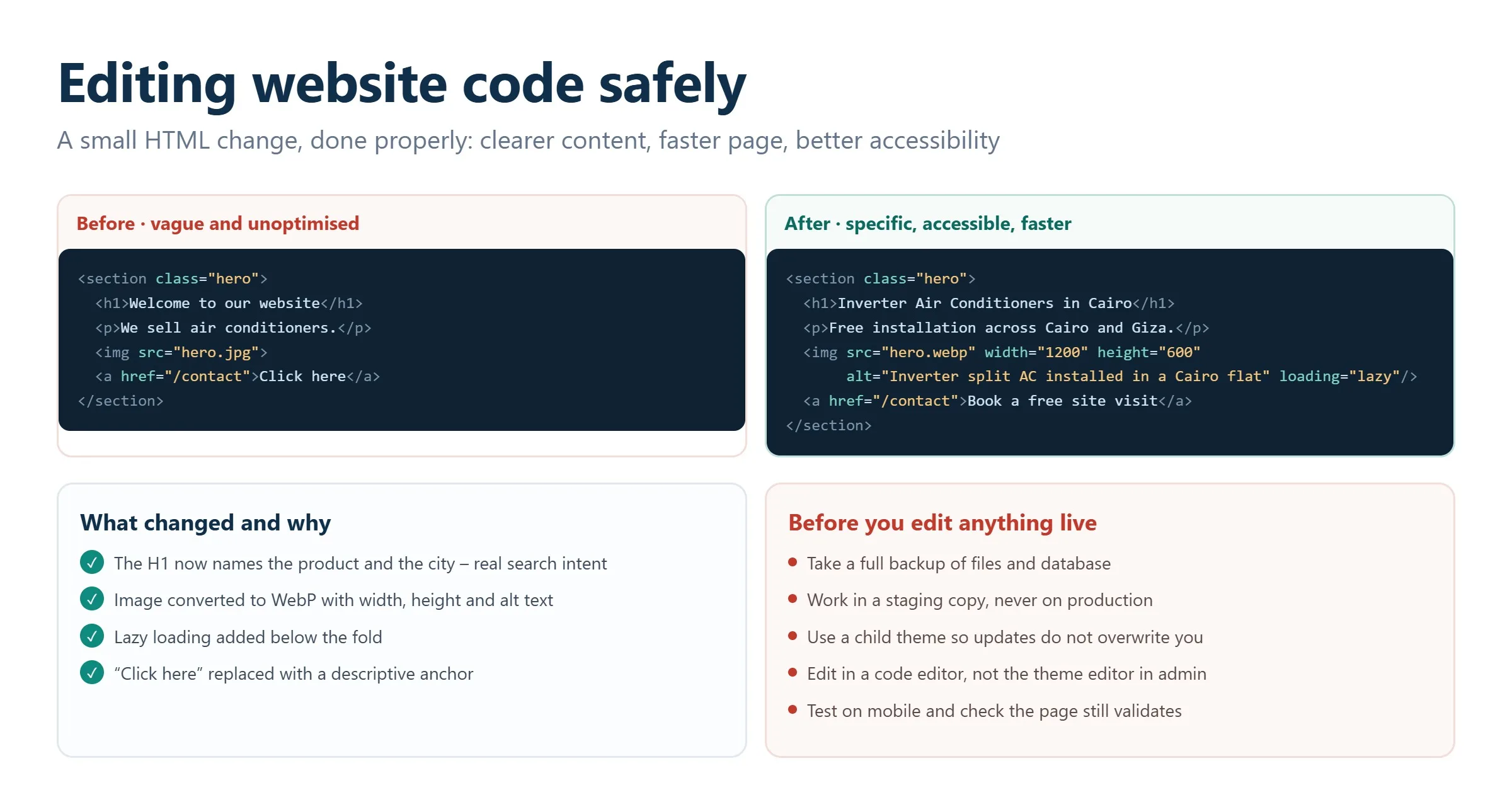
To edit website code safely, work on a copy first: back up your files, make changes in a staging environment or a child theme, test them with your browser’s DevTools, and only then push the update live. Most edits come down to three languages, HTML for structure, CSS for styling, and JavaScript for interactivity, plus knowing where those files live inside your CMS or hosting account. This guide walks beginners and experienced users through the whole process, from the basics of front-end code to editing inside WordPress and other platforms without breaking your site.
Key takeaways
- Always back up before you touch anything. A file copy, a hosting snapshot, or a Git commit gives you a fast way back if an edit goes wrong.
- Understand the three core languages. HTML builds the structure, CSS controls the look, and JavaScript adds behavior, knowing which one owns a change saves hours.
- Edit safely inside a CMS. In WordPress, prefer the Additional CSS panel, a code-snippets plugin, or a child theme over the built-in file editor.
- Test before you publish. Browser DevTools let you preview changes instantly, and cross-browser plus mobile checks catch layout issues early.
- Use staging, not production, for anything risky. A staging copy lets you break things without affecting real visitors.
- Know when to call a developer. Server-side logic, security fixes, and complex functionality are worth handing to a professional.
Understanding how website code works
Modern websites are layered systems, and every page you see is the result of several languages working together. Before you change anything, it helps to know what each layer does and where it lives.
The three languages behind every page
- HTML (HyperText Markup Language) is the skeleton of the page, headings, paragraphs, images, links, and the overall content structure.
- CSS (Cascading Style Sheets) is the visual layer, colours, fonts, spacing, and how elements are positioned on the screen and across devices.
- JavaScript (JS) adds interactivity, animations, form validation, dropdowns, and anything that responds to a user’s action without reloading the page.
A typical page pulls in an HTML document, one or more CSS files, and JavaScript files, while server-side code (PHP, Python, Node.js, and similar) handles requests and generates content behind the scenes.
Front-end vs. back-end
The front end is everything the visitor sees and interacts with in the browser: HTML, CSS, and JavaScript. The back end is what runs on the server, application logic, database queries, and data processing. Most cosmetic and content edits happen on the front end, which is exactly where beginners should start. Deeper functionality changes usually live in the back end and carry more risk. If you want a fuller picture of how these pieces fit together, our overview of web development is a good starting point.
Temporary vs. permanent changes
There are two ways to change what a page shows. Temporary changes happen in your browser using developer tools, they only affect your current session and vanish on refresh, which makes them perfect for experimenting. Permanent changes mean editing the actual files and saving them to the server so every visitor sees the update.
Getting ready to edit code
Preparation is what separates a smooth edit from a broken site. Do these three things every time.
1. Back up your site
Never edit live files without a recovery path. You have several options:
- Automatic backupsmost hosting plans and many CMS plugins take scheduled snapshots you can restore in a click.
- Manual file copiesdownload the files you plan to change via FTP so you have a clean original.
- Version control (Git)the professional standard. Git records every change, lets you roll back instantly, and makes team collaboration possible.
2. Choose your editing tools
Pick tools that match your comfort level:
- Hosting file managerscontrol panels such as cPanel or Plesk let you edit files right in the browser, which is fine for small fixes.
- Code editorsVisual Studio Code, Sublime Text, or Notepad++ give you syntax highlighting, search, and error checking.
- Browser developer toolsbuilt into every modern browser for testing changes before you commit them.
3. Set up a staging environment
A staging site is a private copy of your live site where you can test freely. Many hosts offer one-click staging, and you can also run a local server (with tools like XAMPP or MAMP) to test complex, database-driven projects on your own machine before anything goes public.
Where website code lives and how to access it
How you reach your code depends on the type of site and your access level.
- Hosting control panel. Panels like cPanel or Plesk include a file manager for quick edits without extra software, convenient, but limited compared with a full editor.
- FTP / SFTP. A client such as FileZilla or WinSCP connects directly to your server so you can download, edit locally, and re-upload files. You will need to know your folder structure.
- Your CMS admin panel. Platforms like WordPress, Joomla, and Drupal let you edit themes, templates, and styles from the dashboard.
- Browser developer tools. Ideal for previewing edits and debugging before you make anything permanent.
- Local development. For larger projects, run the whole site locally, test thoroughly, and deploy once you are confident.
Basic HTML editing
HTML is the foundation, so most content edits start here. A handful of tags cover the vast majority of what you will touch:
<h1>–<h6>   headings, most to least important
<p>         paragraphs of text
<a href>    links
<img>       images
<ul> <ol>   bulleted and numbered lists
<table>     tabular data
To find the element you want to change, right-click it in your browser and choose Inspect, or search for its text, ID, or class inside your code editor.
Editing a link, for example, is as simple as changing the text and the destination:
<a href="https://example.com/pricing">See our pricing</a>When you add an image, always include a descriptive alt attribute, it helps screen readers and gives search engines context, which supports your SEO-friendly website goals:
<img src="/images/team-photo.jpg" alt="Our design team at work">Editing CSS to change how the page looks
CSS controls appearance. If you need to change colours, fonts, sizes, or layout, this is where you work. Find the element with your browser’s inspector, then adjust its style rules:
.headline {
  color: #1a1a1a;
  font-size: 32px;
  text-align: center;
}
To change a typeface, set the font-family property, and pull in a web font when you need something beyond the system defaults:
body {
  font-family: "Inter", Arial, sans-serif;
}
Responsive design relies on media queries, which apply different rules at different screen widths. The example below shrinks the font on screens narrower than 768px so the site stays readable on phones:
@media (max-width: 768px) {
  body { font-size: 14px; }
}
Working with JavaScript
JavaScript brings pages to life, updating content on the fly, responding to clicks and scrolls, running animations, and talking to the server without a full reload. It usually runs in the browser, though it can also run on the server via Node.js.
The cleanest way to add JavaScript is an external file rather than inline code:
<script src="/js/main.js" defer></script>Place your <script> tags just before the closing </body> tag, or use the defer or async attributes, so scripts do not block the page from loading. To edit existing scripts, open the Sources tab in DevTools or edit the .js file directly.
Libraries and frameworks such as React and Vue make it easier to build complex, interactive interfaces. When something does not work, the browser console (F12 → Console) is your first stop, add console.log() statements or set breakpoints to trace exactly where the code goes wrong.
Editing code safely in WordPress
WordPress powers a large share of the web, so it deserves a closer look. It gives you several ways to change code, and choosing the right one keeps your edits from disappearing at the next update. For hands-on help, our WordPress development team handles this daily.
Use the theme editor with caution
WordPress includes a built-in editor under Appearance → Theme File Editor. It is convenient, but risky: edits made here are overwritten when the theme updates, and a single syntax error can take the whole site down. Treat it as a last resort, not a default.
Create a child theme
The safe way to modify template files is a child themea lightweight theme that inherits everything from its parent but keeps your customisations separate. Because your changes live in the child theme, they survive updates to the parent theme. This is the professional standard for any structural or template-level edit.
Add custom CSS the easy way
For styling tweaks you rarely need to touch a file at all. Go to Appearance → Customize → Additional CSS and add your rules there. They apply site-wide, stay update-safe, and are simple to remove if you change your mind:
.site-header { background-color: #0b5cff; }Use a code-snippets plugin
To add PHP functionality without editing functions.php directly, a code-snippets plugin lets you insert, enable, and disable snippets from the dashboard. It is far safer than editing theme files, because a broken snippet can be switched off instead of crashing the site. If you would rather not manage any of this yourself, our technical support service can maintain and update the code for you.
Editing code in other platforms
Every CMS stores its code a little differently:
- Joomla keeps templates in a
templates/folder; you edit them under Extensions → Templates or add acustom.cssfile. - Drupal uses theme folders and a template system similar in spirit to WordPress child themes.
- Website builders such as Wix, Squarespace, and Shopify limit direct code access. Some allow custom CSS or an embedded HTML block, but you rarely get full control over the underlying files.
If a builder’s constraints are holding you back, moving to a more flexible platform is often the right long-term call, something worth planning as part of a broader web development project.
Testing changes with browser DevTools
Browser developer tools (right-click → Inspect, or press F12) are the safest playground you have. You can rewrite HTML, tweak CSS, and rerun scripts live, watching the page update in real time, and nothing you do there touches the real files. It is the ideal way to confirm a change works before you commit it.
Before publishing, run these checks:
- Cross-browser testing. View the page in Chrome, Firefox, Safari, and Edge. Tools like BrowserStack let you test many browsers and devices at once.
- Mobile testing. Use the device-emulation mode in Chrome DevTools, then confirm on real phones and tablets.
- Code validation. Run your markup through the W3C HTML and CSS validators to catch errors early.
- Performance testing. Google PageSpeed Insights, GTmetrix, and the Lighthouse panel in Chrome measure load speed and suggest fixes.
Backups and staging: your safety net
The single biggest difference between confident editing and anxious editing is a reliable safety net. Keep a recent backup at all times, and do risky work on a staging copy rather than the live site. If an edit misbehaves, you restore the backup or discard the staging changes: no downtime, no lost sales, no panic. Pairing staging with Git version control gives you a precise history you can roll back one commit at a time.
Common mistakes to avoid
- Editing live files with no backup. The most common cause of a broken site, and the easiest to prevent.
- Editing a parent theme directly. Your work vanishes at the next update, use a child theme instead.
- Unclosed tags and stray brackets. A single missing
</div>or curly brace can break an entire layout or script. - Skipping mobile checks. A change that looks great on desktop can collapse on a phone, where most of your traffic likely is.
- Ignoring security. Always sanitise and escape user input to guard against cross-site scripting (XSS) and SQL injection, use prepared statements for database queries, and serve everything over HTTPS.
- Not testing performance. Bloated CSS and JavaScript slow the page down, which frustrates users and hurts rankings.
Code changes have a direct SEO impact, too. Semantic HTML, structured data (schema.org), optimized images in modern formats like WebP, and fast load times all influence how well you rank. If you are unsure whether recent edits helped or hurt, an SEO audit will pinpoint the issues.
When to hire a developer
Editing text, styling, and simple layout is well within reach for most site owners. But some work is worth handing to a professional. Call in a developer when you are dealing with server-side logic and databases, fixing a security vulnerability, building custom functionality, migrating platforms, or debugging something that keeps breaking despite your best efforts. The cost of professional help is almost always lower than the cost of a hacked or broken site. When a fix is beyond a quick edit, our technical support team can step in.
Frequently asked questions
Can I edit my website code without knowing how to code?
You can make simple changes, swapping text, adjusting colours, or adding a custom CSS rule, with very little technical knowledge, especially inside a CMS like WordPress. For anything involving PHP, JavaScript logic, or database work, either invest time in learning the basics or hire a developer to avoid costly mistakes.
Will editing my code hurt my SEO?
It can, if done carelessly. Removing semantic tags, slowing the page down, or breaking structured data all affect rankings. Done well, though, code edits improve SEO by making pages faster, cleaner, and easier for search engines to understand. Test changes and run an SEO audit if you are unsure.
What is the safest way to change code in WordPress?
Use the Additional CSS panel for styling, a code-snippets plugin for functions, and a child theme for template changes. These methods keep your edits separate from the core files, so nothing is lost when themes or plugins update. Avoid the built-in Theme File Editor for anything important.
How do I undo a change that broke my site?
Restore your most recent backup, or roll back the change in Git if you use version control. If you edited files over FTP, re-upload the original copies you saved beforehand. This is exactly why backing up before every edit matters so much.
What tools do I need to start editing website code?
At a minimum, a modern browser with developer tools and a code editor such as Visual Studio Code. Add an FTP client like FileZilla for file transfers, and consider Git for version control. Most of these tools are free.
Related guides
Want more people
to find your website?
Strategy call and
full site audit

Read also

Article Your Name in ChatGPT: AI Reputation for Individuals and Executives
Article How Much Does SEO Cost in Egypt, Saudi Arabia and the UAE in 2026?
Article Which Sites Do AI Engines Cite? What a 288-Answer Study Means for Gulf Brands
Article Google Algorithm Updates: Every Confirmed Update Since January 2025
Article ChatGPT Ads Context Hints: How to Write Them for Gulf and Arabic Campaigns
Article Google Ads Credit for New Advertisers: What a Google Premier Partner Can Apply for You
Article 25 Questions to Ask an SEO or GEO Agency Before You Hire One
Article GEO for E-commerce: How to Get Your Products Recommended by ChatGPT and Google AI





Real Results
More Wins
SEO & GEO for Delta Medical Labs
 GEO
GEO
1M+ monthly organic visits, 159,200 ranked keywords, 5,570 pages cited by AI engines, and 1,186 #1 rankings in KSA.

Arabic SEO, GEO & guest posting for VPNly
 SEO
SEO
65K peak monthly organic visits, 55 guest posts, and 149 pages cited by AI engines.

SEO & GEO for Ogaei Virtual Care
GEO
From 3 to 7,931 monthly organic clicks in 7 months, 2.9M+ impressions, and 40+ keywords in Google’s Top 10.

SEO for Eduverse
SEO
12× search traffic in 10 months, 45% of target keywords in the top 5, and 55% in the top 10.
Trusted by