
How to Find Out a Website’s CMS: 4 Simple Ways
To find out what CMS a website runs on, you rarely need special skills or paid software. In most cases you can identify the platform in under a minute using four proven approaches: reading the page source for HTML signatures, installing a browser extension such as Wappalyzer or BuiltWith, running the URL through an online CMS detector, or checking tell-tale files like /robots.txt and the site’s URL structure. Below, we walk through each method, explain when detection is easy (and when it is nearly impossible), and share the practical cautions that keep you from drawing the wrong conclusion.
Key takeaways
- The fastest free method is opening the page source (Ctrl+U) and searching for the
meta name="generator"tag or platform-specific file paths. - Browser extensions like Wappalyzer and BuiltWith reveal the CMS plus the wider tech stack in a single click, which is ideal for frequent checks.
- Online detectors such as WhatCMS and BuiltWith return an answer from just a URL, with no installation required.
- URL patterns, admin-panel paths, and
/robots.txtentries are strong hints, but they can be customized and should never be your only signal. - Custom or heavily modified platforms are hard to identify, and that ambiguity is usually a sign the information matters less than you think.
- Analyze competitors to learn and improve, not to clone. Detection is a research tool, not a shortcut to copying a site wholesale.
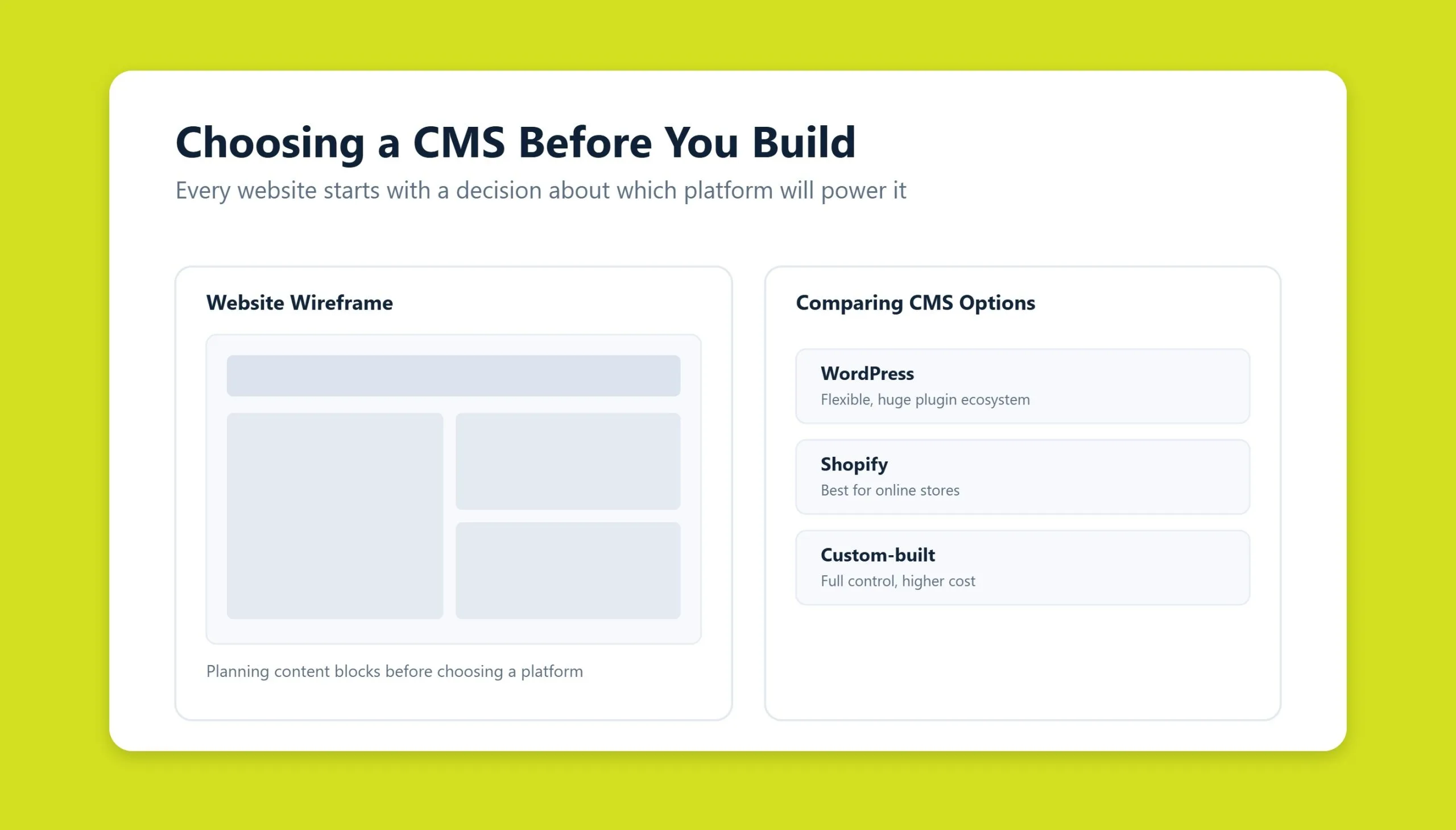
Why you would want to know a site’s CMS
There are several good reasons to identify the content management system behind an existing website. Here are the most common ones.
You may be in the idea-generation stage for a new project. Whether you are building a real-estate marketplace, a news portal, or a booking site for hotels and restaurants, studying competitors is part of the process. If you spot a beautiful design, thoughtful functionality, or a smart site structure, knowing the underlying platform tells you which technology can reliably reproduce something similar, only better than the original.
You may be trying to climb the search results and outperform competitors. Understanding a rival’s CMS can inform your own SEO strategy, including whether to migrate to a faster, more scalable platform that handles large databases well, stays stable under heavy load, and offers dedicated SEO plugins and modules. A structured SEO audit often begins with exactly this kind of technical fingerprinting.
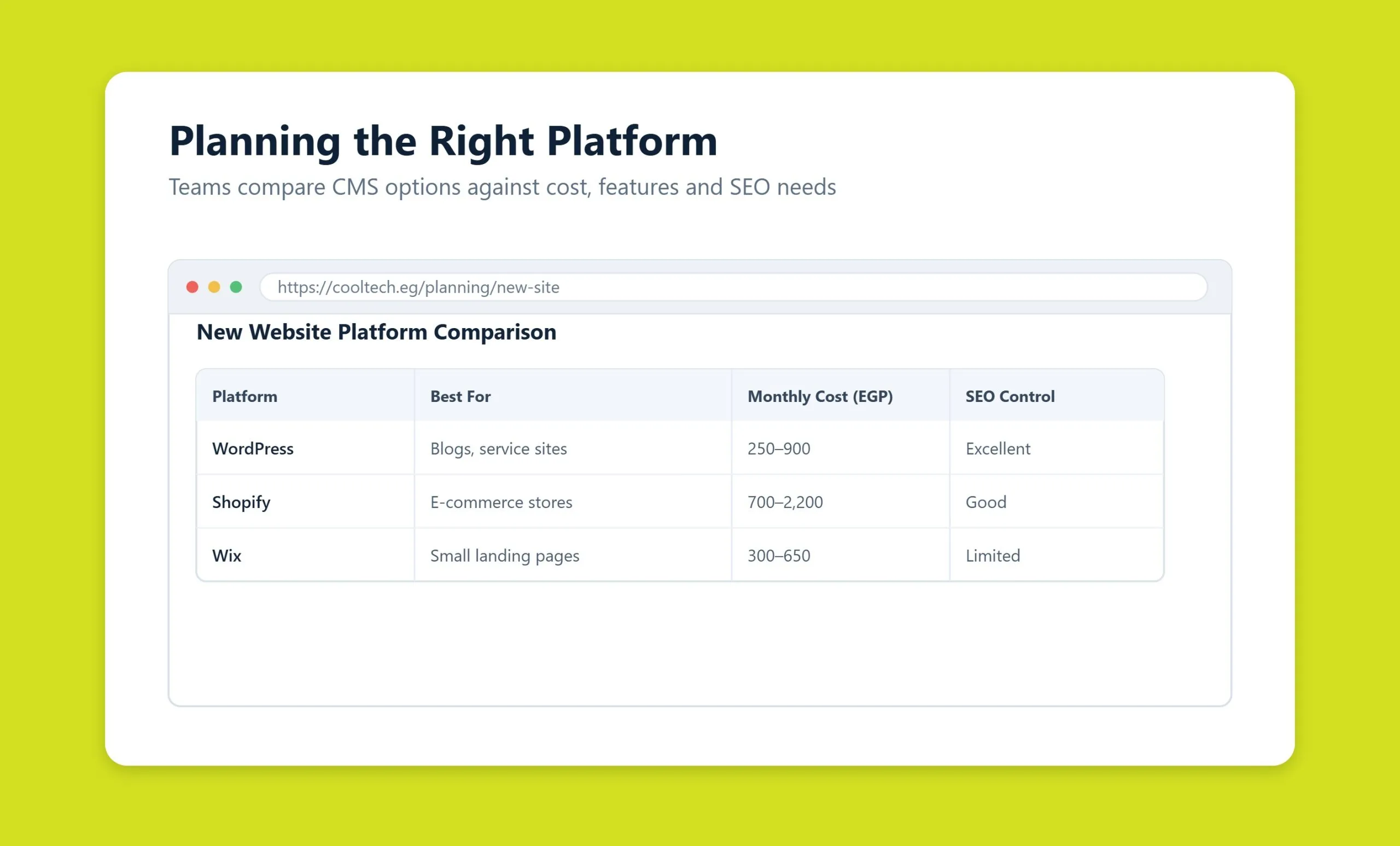
Or you may simply be curious how a site looks and behaves on a particular platform, comparing free options like WordPress and Joomla against commercial systems such as Adobe Commerce (Magento) or Sitecore. Comparing real-world examples helps you find the right balance between cost and the quality you need before you commit to web development.
Whatever your goal, the methods below will get you the answer.
Method 1: Read the page source and look for HTML signatures
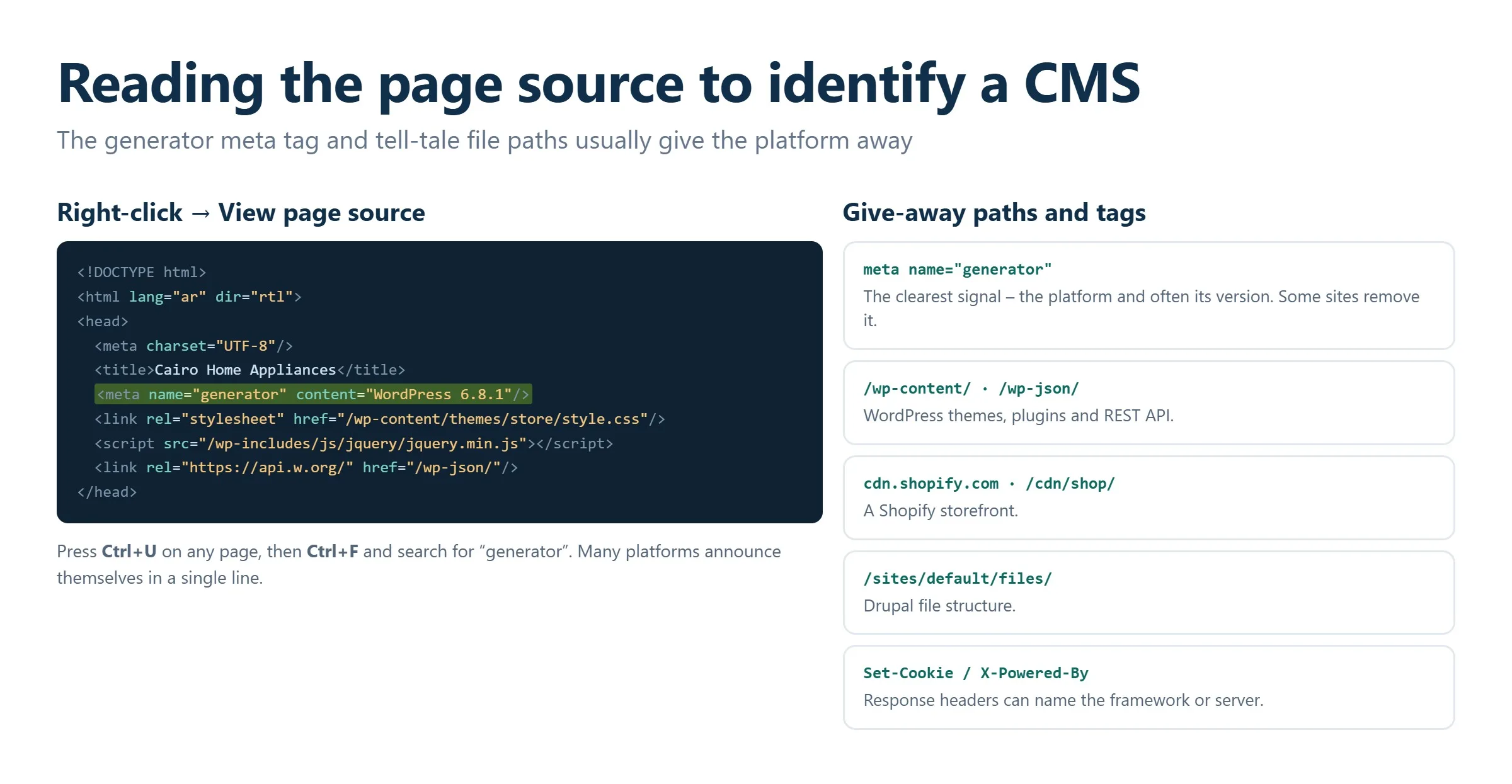
Manual inspection works well for popular, well-documented systems, both free and commercial. Open any page and switch to source-code view. Every major browser supports this with the Ctrl+U shortcut (Cmd+Option+U on Safari for Mac). Then work through the following signals.
The meta generator tag
Use in-page search (Ctrl+F) to find meta name="generator" and read the value that follows. Many platforms name themselves directly in the content attribute, for example content="WordPress 6.5" or content="Drupal 10". This is the single clearest giveaway when it is present.
File paths in the HTML
If the generator tag is missing, scan the code for the CMS name inside file paths, whether in a page address, a script, or an image. Pay close attention to the src attribute, which usually holds these paths. If you find something like src="/wp-content/…", the site is almost certainly running WordPress. Similarly, /sites/default/files/ points to Drupal, /media/jui/ or /templates/ hints at Joomla, and /skin/frontend/ suggests Magento.
URL patterns and the admin panel
The way a platform names its pages is another characteristic clue. WordPress default permalinks look like sitename/?p=123, while Joomla often produces paths such as sitename/index.php?option=com_content&view=article. The login URL of the admin panel is equally telling: WordPress lives at /wp-admin by default, Joomla at /administrator, and Drupal at /user/login. A quick search will surface the default admin paths for most popular systems.
Method 2: Browser extensions like Wappalyzer and BuiltWith
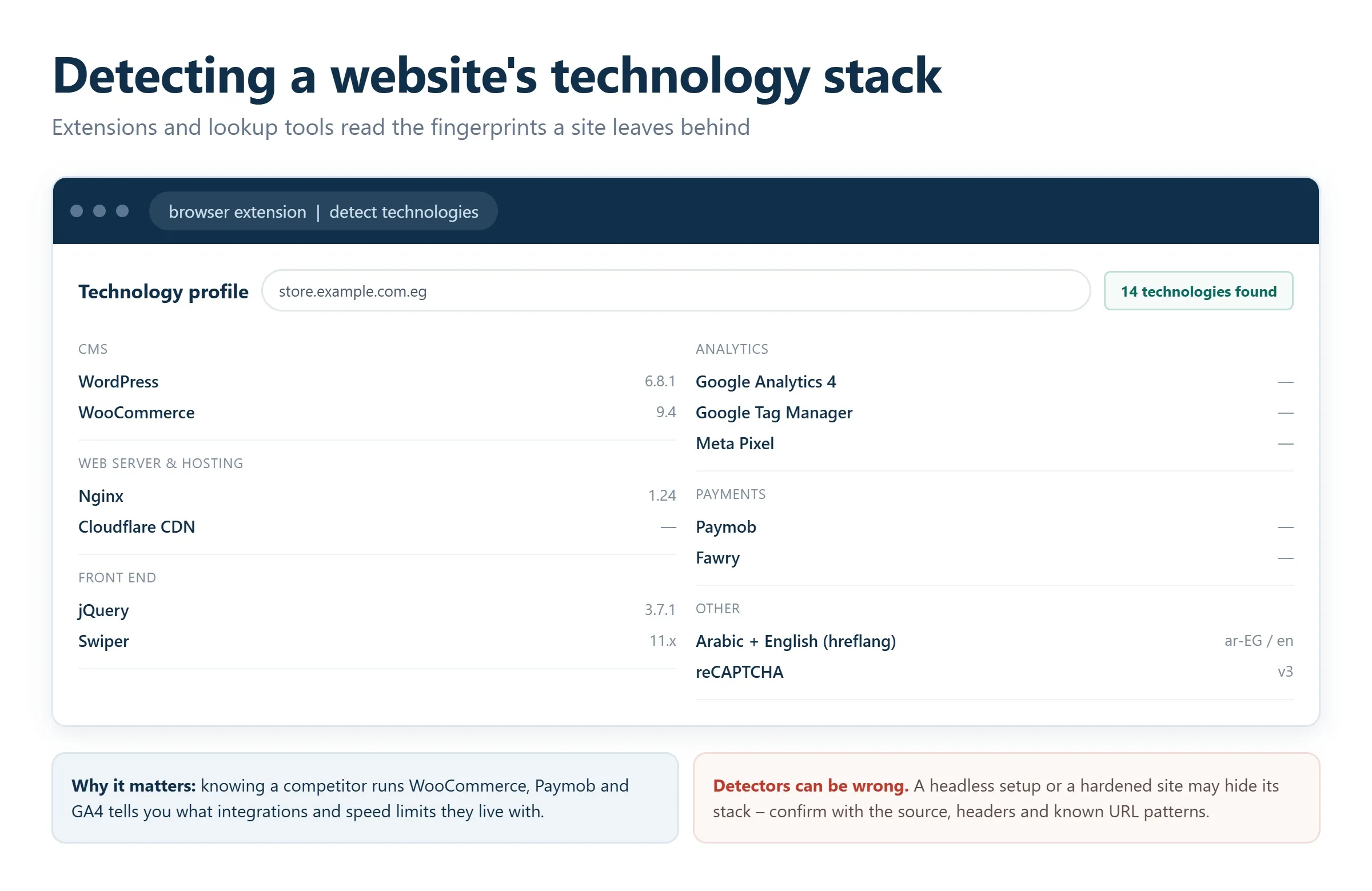
If you check technologies regularly, a browser extension is the most efficient option. Wappalyzer is the best known, works across Chrome, Firefox, Edge, and Safari, and identifies not just the CMS but the entire stack: analytics tools, JavaScript frameworks, CDNs, payment providers, and more. You click the icon and read the result on any page you visit.
BuiltWith offers a similar extension, and other tools worth exploring include WhatRuns and the Wappalyzer alternatives bundled into many SEO toolbars. The upside of extensions is speed and depth. The downside is that some are optimized for broad market-research use cases, so the interface can feel heavier than a simple one-off check requires. For teams that manage many client sites, an extension turns detection into a passive, always-on habit, which pairs naturally with ongoing technical support and monitoring.
Method 3: Online CMS detectors
When you would rather not install anything, online detectors do the job from a URL alone. BuiltWith.com identifies the platform without registration, even though the service is really built for much larger competitive-tracking and e-commerce-trend tasks, so a simple CMS lookup is trivial for it.
WhatCMS.org is faster and more focused: paste an address, wait a couple of seconds, and get the result. The one exception is rare or fully custom-built systems that do not appear in any registry or ranking. In practice, failing to identify those is not a real loss. If a site turns out to run an in-house CMS built by a single agency, that fact gives you nothing actionable to work with. Other services in this category include CMS Detector and W3Techs. Their strength is speed and accuracy; their limitation is that many are tuned for broad market intelligence rather than a quick single check.
Method 4: robots.txt and other tell-tale files
The name of the management system often leaks through the robots.txt file, which sits in the site root and is viewable at sitename/robots.txt or downloadable as a plain text file. WordPress installs frequently disallow /wp-admin/, Joomla lists directories like /administrator/ and /components/, and Drupal references /core/ and /modules/. Sitemap declarations and cache-file naming conventions can reinforce the guess. Because robots.txt is public and rarely obfuscated, it is one of the quickest confirmations available.
A few practical cautions
Before you treat any single signal as proof, keep these realities in mind so you do not reach a wrong conclusion.
- Different parts of a site can run different systems. The core might be custom-built while the blog or forum uses proven, drop-in software such as WordPress or phpBB, because there is no sense reinventing what already works well.
- URL and directory naming is not a reliable fingerprint on its own. WordPress, even in a basic install, lets you choose from many permalink structures and content hierarchies, which can mask the usual patterns.
- The same applies to the admin URL. Changing it is slightly harder, but entirely possible, and is often done specifically to make a site harder to attack.
Most importantly, do not analyze competitors’ platforms in order to build clones. Look, analyze, think, and then create. Genuinely great websites, whatever their niche, come from original work built on solid technology, not from tracing someone else’s footsteps. If you are ready to build on a proven, SEO-friendly foundation, our WordPress development team can help you turn that research into a site of your own.
Frequently asked questions
Can I always detect which CMS a website uses?
No. Popular platforms like WordPress, Joomla, Drupal, and Magento leave clear fingerprints and are easy to identify. Custom-built or heavily modified systems can hide almost every signal, and in those cases even the best detectors may return “unknown.” That ambiguity is usually a sign the answer matters less than you assume.
Is it legal to check another site’s CMS?
Yes. You are only reading information the website already sends to every visitor, such as the page source, public files, and HTTP headers. Detecting the platform is a normal part of competitive research and technical analysis. What matters is how you use the insight, so study to learn and improve rather than to copy a site wholesale.
What is the fastest free way to identify a CMS?
For a one-off check, paste the URL into an online detector like WhatCMS or BuiltWith. If you prefer to stay in the browser, open the page source with Ctrl+U and search for the meta name="generator" tag or a /wp-content/-style path. If you check sites often, install the Wappalyzer extension for one-click answers.
Why might two tools report different results?
Detectors rely on different signatures and update their databases at different times. A site may also combine technologies, use a caching or security layer that masks headers, or run a front-end framework on top of a traditional CMS. When results conflict, cross-check with the page source and robots.txt before deciding.
Does knowing the CMS help with SEO?
It can. The platform influences page speed, structured-data support, URL flexibility, and which optimization plugins are available. Knowing what a competitor runs, or auditing your own stack, helps you plan migrations and technical fixes. A full SEO audit typically starts with exactly this kind of technical fingerprinting.
Related guides
Want more people
to find your website?
Strategy call and
full site audit

Read also

Article Your Name in ChatGPT: AI Reputation for Individuals and Executives
Article How Much Does SEO Cost in Egypt, Saudi Arabia and the UAE in 2026?
Article Which Sites Do AI Engines Cite? What a 288-Answer Study Means for Gulf Brands
Article Google Algorithm Updates: Every Confirmed Update Since January 2025
Article ChatGPT Ads Context Hints: How to Write Them for Gulf and Arabic Campaigns
Article Google Ads Credit for New Advertisers: What a Google Premier Partner Can Apply for You
Article 25 Questions to Ask an SEO or GEO Agency Before You Hire One
Article GEO for E-commerce: How to Get Your Products Recommended by ChatGPT and Google AI






Real Results
More Wins
SEO & GEO for Delta Medical Labs
 GEO
GEO
1M+ monthly organic visits, 159,200 ranked keywords, 5,570 pages cited by AI engines, and 1,186 #1 rankings in KSA.

Arabic SEO, GEO & guest posting for VPNly
 SEO
SEO
65K peak monthly organic visits, 55 guest posts, and 149 pages cited by AI engines.

SEO & GEO for Ogaei Virtual Care
GEO
From 3 to 7,931 monthly organic clicks in 7 months, 2.9M+ impressions, and 40+ keywords in Google’s Top 10.

SEO for Eduverse
SEO
12× search traffic in 10 months, 45% of target keywords in the top 5, and 55% in the top 10.
Trusted by